Sending bulk email campaigns directly through an authenticated Gmail or Google Workspace account is one of the most effective methods to achieve maximum primary inbox deliverability. While traditional Email Service Providers (ESPs) route broadcast newsletters through shared server subnets that frequently trigger Gmail’s Promotions or Spam tabs, direct Gmail merges land straight in the recipient’s primary correspondence stream.
This step-by-step guide explains how to prepare your contact list, configure dynamic merge variables with fallbacks, and dispatch personalized outreach campaigns directly from your browser—completely free of monthly subscription fees.
1. Why Send Bulk Emails via Native Gmail?
Traditional broadcast platforms like Mailchimp, Brevo, or SendGrid are engineered for visual e-commerce promotions and broad opt-in newsletters. For direct B2B outreach, founder networking, recruiting, or client communications, sending natively through Gmail offers three distinct structural advantages:
[Traditional ESP Broadcast] ──> Shared Server IP Subnet ──> Promotions / Spam Tab
[Native Gmail Mail Merge]   ──> Official Google Server  ──> Primary Personal Inbox
1. Superior Inbox Placement
Messages dispatched through your authenticated Google session carry authentic SPF, DKIM, and DMARC credentials. Because they lack corporate bulk headers (List-Unsubscribe, X-Campaign-ID), spam filters evaluate them as organic, person-to-person correspondence.
2. Zero Recurring SaaS Costs
Enterprise outreach tools charge between $29 and $99+ per month simply to route messages through your own mailbox. A browser-native workflow eliminates recurring software overhead entirely.
3. Native Sent Folder Visibility
Every email sent through your Google session is recorded directly inside your official Gmail Sent folder. You retain complete transparency and can follow up directly inside existing conversation threads.
2. Platform Comparison: Dedicated ESP vs. SendGM Browser Merge
| Feature / Metric | Dedicated Marketing ESPs | SendGM (Browser-Native) |
|---|---|---|
| Monthly Pricing | $20 – $120+/month | $0 / 100% Free |
| Default Inbox Tab | Promotions or Spam | Primary Inbox |
| Data Privacy | Contacts uploaded to cloud database | 100% Client-Side Browser Memory |
| Account Setup | DNS CNAME/TXT setup required | Zero Setup — Works instantly |
| Email Format | Heavy HTML templates | High-converting plain text / clean formatting |
| Daily Volume Limit | List-size pricing tiers | 500 (Free Gmail) / 2,000 (Workspace) |
3. Step 1: Structuring & Sanitizing Your CSV Contact List
The foundation of any high-delivering campaign is a clean, properly formatted .csv (Comma Separated Values) spreadsheet.
┌────────────────────────────────┬────────────┬──────────────────┬──────────────┐
│ Email                          │ First Name │ Company          │ Custom Note  │
├────────────────────────────────┼────────────┼──────────────────┼──────────────┤
│ sarah.j@acmetech.com           │ Sarah      │ Acme Tech        │ your blog    │
│ marcus.dev@innovate.io         │ Marcus     │ Innovate Solutions│ your podcast │
│ alex@cloudscale.co             │            │ CloudScale       │ your launch  │
└────────────────────────────────┴────────────┴──────────────────┴──────────────┘
Essential Formatting Rules
- Header Row: Ensure row 1 contains distinct column headers (e.g.,
Email,First Name,Company,Role). - Valid Email Column: Verify that email addresses are well-formed without trailing spaces or hidden characters.
- Deduplication: Remove duplicate recipient entries to ensure no contact receives the same email multiple times.
- Data Hygiene: Run your list through an email verification tool prior to campaign launch to keep hard bounce rates strictly under 2%.
4. Step 2: Drafting with Dynamic Tags and Smart Fallbacks
Missing data points in contact spreadsheets (such as an empty First Name cell) often result in embarrassing rendering mistakes like “Hi {{First Name}},”.
SendGM solves this with an interactive fallback engine using the pipe (|) syntax:
{{Column Name|Fallback Text}}Practical Fallback Examples
| Syntax in Template | When CSV Cell Has Data | When CSV Cell is Blank |
|---|---|---|
| `{{First Name | there}}` | “Hi Sarah,” |
| `{{Company | your team}}` | “…impact at Acme Tech” |
| `{{City | your area}}` | “…businesses in Austin” |
This ensures that every email reads naturally, regardless of spreadsheet gaps.
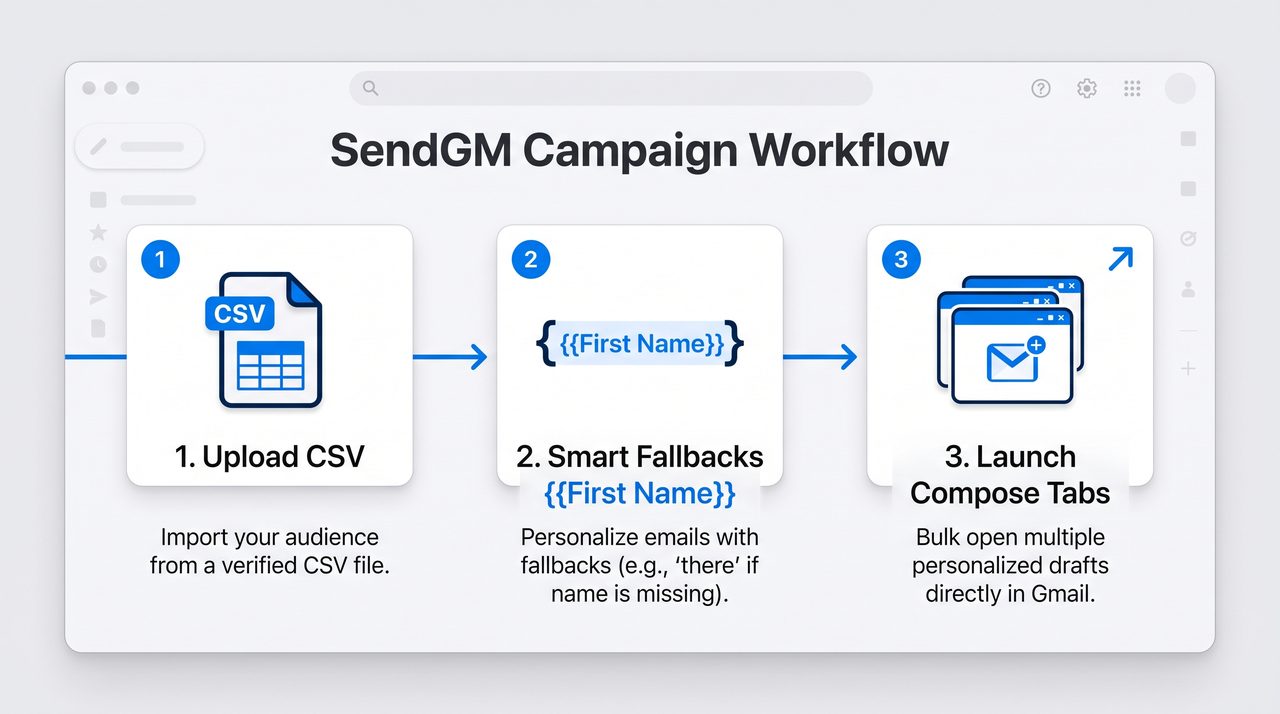
5. Step 3: Launching Your Campaign via SendGM
SendGM runs entirely in your browser using client-side JavaScript APIs, meaning your contacts never leave your computer’s local memory.
[Drop CSV File] ──> [Auto-Map Variables] ──> [Draft Template] ──> [Batch Launch in Gmail]The 4-Step Execution Workflow
- Load Your Spreadsheet: Drag and drop your
.csvfile directly into the SendGM workspace. SendGM parses the columns and calculates total contact count instantly. - Draft Subject & Body: Write your outreach copy using the dynamic merge tags mapped from your CSV headers.
- Inspect Real-Time Previews: Cycle through row-by-row previews to verify tag replacements, paragraph spacing, and fallback rendering.
- Launch Controlled Batches: Use the batch launcher (selecting 5 to 10 emails at a time) to trigger pre-populated native Gmail compose tabs in your browser. Review the personalized copy and send each email with a single click.
6. Understanding Google’s Official Daily Quotas
When sending mail merges through Gmail, sending volume is governed by Google’s official account thresholds:
- Personal Free Accounts (
@gmail.com): Up to 500 recipients per rolling 24-hour window. - Google Workspace Accounts (
user@company.com): Up to 2,000 recipients per rolling 24-hour window.
Pacing & Velocity Guardrails
To protect your sender reputation and avoid automated velocity flags:
- Batch Your Outreach: Dispatch campaigns in small groups (4–10 tabs) rather than attempting hundreds of rapid clicks simultaneously.
- Keep Cold Volume Moderate: Even though Google Workspace technically allows 2,000 emails daily, keep cold B2B outreach capped at 40 to 50 emails per day per inbox to maintain pristine domain health.
7. High-Converting Plain-Text Outreach Template
Use this lean, 4-part structure for direct B2B outreach or service pitches:
Subject: quick question regarding {{Company}}

Hi {{First Name|there}},

Saw that {{Company}} is actively expanding your development squad this quarter.

When scaling technical teams quickly, engineering leads often face onboarding bottlenecks that slow down initial sprint velocity.

We built a lightweight workflow that automates developer onboarding setup, helping teams like Acme reduce ramp-up time from 2 weeks down to 3 days.

Open to checking out a 2-minute overview doc, or not a priority right now?

Best regards,
{{Your Name}}
8. Pre-Launch Deliverability Checklist
Before dispatching your first batch of emails, verify the following:
- Email List Verified: Contact list scrubbed of invalid, syntax-errored, and temporary mailboxes.
- Deduplication Complete: All duplicate email addresses removed from the CSV.
- Fallback Syntax Tested: All merge tags include fallback rules (e.g.,
{{First Name|there}}). - Zero Spam Trigger Words: Subject lines and body text free of hype phrases (“100% Free”, “Make Money”, “Act Now”).
- Clean Plain-Text Layout: Message formatted as clean, natural text with minimal links and zero bulky graphics.
- Daily Quota Checked: Planned volume remains safely within Google’s 24-hour rolling limit.
Frequently Asked Questions
Can I attach files when sending bulk emails with SendGM?
Because SendGM launches native Gmail compose windows directly in your browser, you can attach PDFs, images, or documents to individual emails as needed before sending. However, for initial cold outreach, omitting attachments yields higher primary inbox placement.
Does SendGM store my contact lists on its servers?
No. SendGM is 100% browser-native. Your CSV data, recipient rows, and drafts are processed exclusively in your browser’s local memory and are never uploaded to any remote database.
Why do plain-text emails perform better than designed HTML templates?
Email service providers categorize styled HTML templates, multiple tracking scripts, and graphic banners as commercial marketing, routing them into the Promotions tab. Plain-text emails mirror authentic human correspondence, landing reliably in the recipient’s Primary Inbox.
What should I do if Google gives me a “Sending Limit Exceeded” warning?
If you hit your daily limit, pause all outreach immediately. Google’s quota operates on a rolling 24-hour sliding window; sending permissions will restore automatically 24 hours from the time your earliest batch was dispatched.