Whether you are launching a cold outreach campaign, sending customer onboarding updates, or distributing a community newsletter, exceeding Google’s daily sending quotas can instantly lock your account with a temporary sending block.
Google enforces strict daily thresholds to prevent spam, protect recipient inboxes, and maintain server integrity. However, Google does not calculate sending limits simply by counting how many times you hit the “Send” button.
This guide provides a comprehensive breakdown of official sending quotas for personal @gmail.com accounts versus Google Workspace domains, explains how Google calculates recipient math, and outlines how to structure safe outbound workflows.
1. Personal Gmail vs. Google Workspace: At a Glance
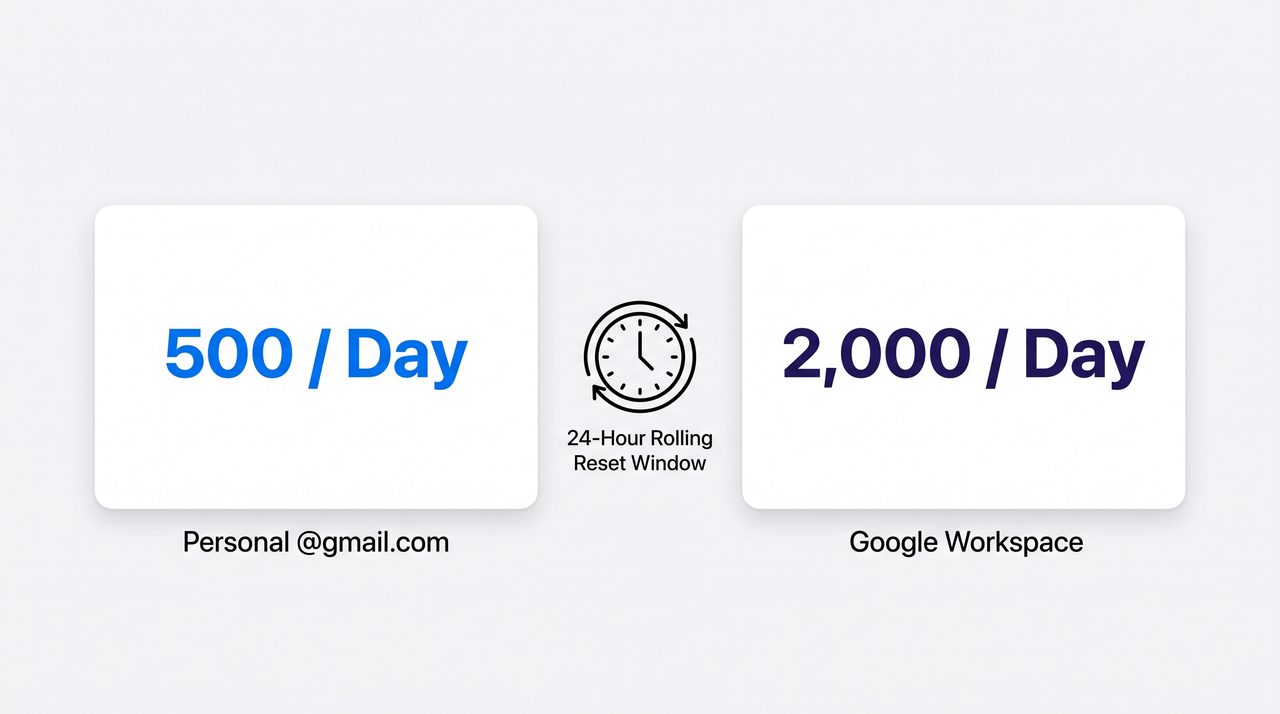
| Feature / Limit | Free Personal Gmail (@gmail.com) |
Google Workspace (user@company.com) |
|---|---|---|
| Daily Recipient Quota (Web UI) | 500 recipients / 24 hours | 2,000 recipients / 24 hours |
| Daily Recipient Quota (Third-Party SMTP / IMAP) | 100 – 500 recipients / 24 hours | 10,000 recipients (via Google SMTP Relay) |
| Quota Reset Mechanism | Rolling 24-hour sliding window | Rolling 24-hour sliding window |
| New Account / Trial Restrictions | Standard 500 limit (higher spam scrutiny) | Capped at 500/day until account spends $30+ USD |
| Primary Use Case | Personal correspondence, low-volume tests | Commercial sales outreach, team collaboration |
| Recommended Cold Outreach Cap | 20 – 30 cold emails / day | 40 – 50 cold emails / day per account |
2. Recipient Math: How Google Actually Calculates Your Quota
A common misconception among senders is that sending one email counts as one unit against your daily limit. Google measures recipients, not individual messages.
[1 Email Draft] ──> Sent to: 1 "To" + 2 "CC" + 7 "BCC" ──> Counts as 10 Recipients toward QuotaKey Quota Calculation Rules
- To, CC, and BCC Combined: If you send a single message with 5 addresses in the
Tofield and 10 in theBCCfield, that single message consumes 15 units of your daily allocation. - Undelivered & Bounced Addresses: Bounced emails and invalid addresses still consume recipient units from your daily quota.
- The Rolling 24-Hour Window: Google does not reset your sending counter at midnight. Quotas operate on a dynamic sliding 24-hour clock. If you send 300 emails on Tuesday at 3:00 PM, those 300 units only become available again after Wednesday at 3:00 PM.
3. Google Workspace Account Nuances & Trial Caps
Upgrading to a paid Google Workspace account unlocks the maximum quota of 2,000 recipients per day, but there are important caveats for newer domains.
The $30 Cumulative Spend Rule
To prevent spammers from spinning up disposable $6 Workspace accounts for bulk abuse, Google restricts all new Workspace accounts to 500 recipients per day during the initial trial period.
The full 2,000/day limit is only unlocked once your domain meets both criteria:
- Your account has transitioned out of the free trial into active paid billing.
- The domain has cumulatively paid at least $30 USD in subscription fees (or an equivalent prepayment has been deposited into your Google Admin billing console).
4. Technical Limits vs. Safe Cold Outreach Thresholds
Just because Google Workspace allows you to send 2,000 emails per day does not mean you should blast 2,000 cold outbound emails daily from a single address.
┌───────────────────────────────────────────────────────────┐
│ Technical Google Limit: 2,000 Recipients / Day            │
│ (Intended for internal company announcements & meetings)  │
├───────────────────────────────────────────────────────────┤
│ Safe Cold Outreach Ceiling: 40 – 50 Emails / Day          │
│ (Designed to maintain sender reputation & inbox health)   │
└───────────────────────────────────────────────────────────┘
When sending cold business outreach:
- The Risk of Bulk Volume: Blasting hundreds of unsolicited emails per day triggers recipient spam complaints and negative behavioral engagement signals, which degrade your domain reputation.
- The Multi-Inbox Strategy: If you need to send 200 cold emails daily, do not send all 200 from a single address. Instead, distribute the volume across 4 to 5 dedicated Google Workspace inboxes (sending ~40 emails per inbox per day).
5. How Batching & Pacing Protect Your Sender Reputation
Sending 50 emails within three seconds looks like automated bot behavior to Google’s anti-abuse algorithms. Even if you stay well below your daily limit of 500 or 2,000, sudden bursts can trigger temporary outbound throttling.
Best Practices for Message Pacing
- Controlled Batch Sizes: Dispatch outreach in manageable batches of 5 to 10 emails at a time.
- Human-Like Delay Intervals: Introduce brief pauses (20 to 60 seconds) between outgoing batches to replicate natural human work patterns.
- Browser-Native Compose Launching: Using client-side tools like SendGM avoids rigid background relay pipelines. SendGM launches native Gmail compose instances one-by-one or in structured batches, allowing you to review personalizations and send messages organically through your authenticated Google session.
6. What Happens When You Hit the Sending Limit?
If you exceed your daily quota or trigger a sudden velocity flag, Google temporarily suspends your ability to send outgoing messages.
The Warning Signals
- Error Message: “You have reached a limit for sending mail. Your message was not sent.”
- SMTP Error Code:
5.4.5 Daily user sending limit exceededor error code6922.
Recovery Protocol
- Wait 24 Hours: The suspension typically lifts automatically within a rolling 24-hour window.
- Do Not Attempt Rapid Sends: Continuously retrying to send messages during the lockout can reset the 24-hour suspension timer.
- Verify List Hygiene: Before resuming, scrub your contact lists through an email verification service to remove invalid and dead addresses.
Frequently Asked Questions
Does SendGM increase my daily Gmail sending limit?
No. SendGM operates entirely client-side and triggers authentic Gmail compose sessions directly in your browser. All sending volume adheres strictly to Google’s official limits (500/day for personal Gmail, 2,000/day for Google Workspace).
If I delete an email I just sent, do I get the quota back?
No. The moment an email is dispatched to Google’s mail servers, the recipient allocation is deducted for the full rolling 24-hour window, regardless of whether you archive or delete the sent message.
Does internal communication count toward the 2,000 Workspace limit?
Yes. Every recipient address inside or outside your organization counts toward your daily quota. Sending a company-wide update to an alias with 300 internal employees counts as 300 recipient units against your daily cap.